
How to Use Netscape Gold for Editing Your Web Page
4. A dialogue box will appear asking you to save the document and associated figures. Click on the "Save" button.
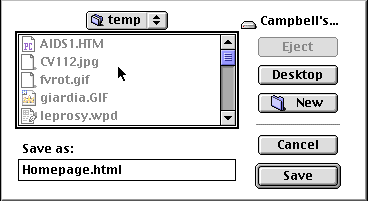
5. Another dialogue box will appear asking
you where you want to save these files. Save the files in 24 hour storage
and set up a new folder called "WWW loading". This will cause
all of the files to be saved in your newly created folder.
6. You may now begin to make changes to the template text and figures.
Text
To make changes to text, drag across the existing text and delete it by typing. You can type anything or just hit the space bar. You may use the text tools from the options above to modify the appearance of the text but remember the guidelines for minimum standards. Save your file as homepage.html. This will be the name everyone gives to their opening page on the biology web server.
One option you have is to type all of your text in a word processor and the copy/paste the text into your Netscape Gold file. That way you can use any word processor and you can use spellchecking.
Graphics
You may click on the existing graphics
and delete them. To place your own graphics in this file, save any graphic
files in your folder and give them a name like fig1.GIF or fig1.JPEG. Web
figures must be saved in either GIF or JPEG formats (clever
ways to compress the files). If you want to use an image you found on the
web, click and hold the mouse button while pointing to the image. You will
get a dialogue box asking you how you want this file saved. Choose "Save
this image as....". Name the file something.GIF and save it in
your web folder.

To insert an image into your web page, click on the "Insert Image" button form the menu at the top of the page.

A dialogue box will ask you to select the file. Click on "Choose File..." and select the image file from your folder. You can choose to have the text wrap around the figure in different ways.
Changing Links
The template has two links indicated by buttons. You should keep these links and buttons. There is a text link to the molecular biology page. You will need to reestablish this link.

To make a link, drag across the existing text (you can retype the text if you want). While the text is still highlighted, click on the "Link Button".

When the dialogue box appears, you must enter the location of the file you want to link to. Make sure you know how to make RELATIVE LINKS when possible. (Click here for more information about relative links.) Click on the "Insert Button".
You can make as many links as you want to both Davidson pages and to the
outside world.
Email Links
At the bottom of the page is an email link so people will be able to send you email after being amazed by your home pages. Drag across my email address and type in your own. While the text is highlighted, click on the "Link Button" and type in the Link to: field <mailto://username@davidson.edu> where username is your email address. Click on the "Insert Button".

Now you are spinning a piece of the web. Remember the general rules about the minimum standards and what you can put on these biology pages. You may want to have a personal home page on the college's server. ITS can help you with that.
A final word on making good pages. If you see a site that has a format you want to copy (and this is legal), all you have to do is go to the view menu at the top and select "Document Source".

This will download a simple text file that has all the HTML code in it to replicate the page (text only). You can then retype over the text but keep the format.


© Copyright
2000 Department of Biology, Davidson College, Davidson, NC 28036
Send comments, questions, and suggestions to: macampbell@davidson.edu